Adding Strange DNS Records to Cloudflare
This is a post about a really niche problem that I ran into a few days ago. It looks like the Cloudflare DNS app does not like it when your subdomains are named too similarly to your apex. It's very possible this is a user-friendliness measure and they're trying to protect you from making a mistake, but I had to work around it.
Let's be a bit more concrete here.
The Problem
Consider the name tylerfilla.com, and assume it is on Cloudflare.
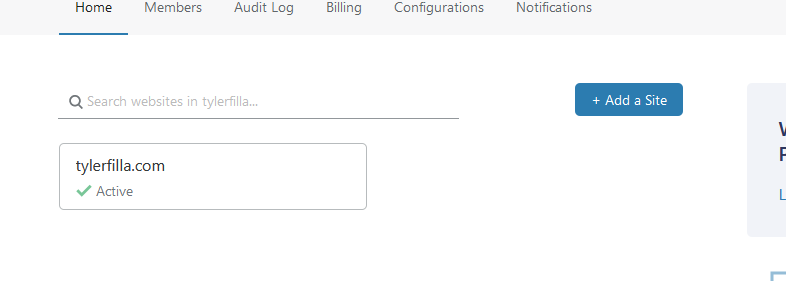
The site listed on my Cloudflare home page.
Now let's go to the DNS app for the site.
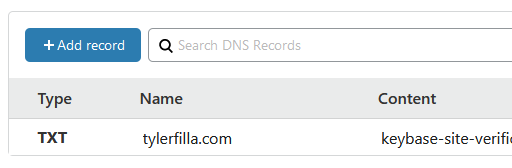
The site's existing DNS records. The TXT record you see here is a Keybase proof and does not have anything to do with this blog post.
A Contrived Example
Let's make blog.tylerfilla.com point to some IPv4 address, say 192.168.1.1. (This is a reserved IP address meant for local networks, but that's not a DNS concern. This would potentially resolve to a device on the visitor's own home network or something.)
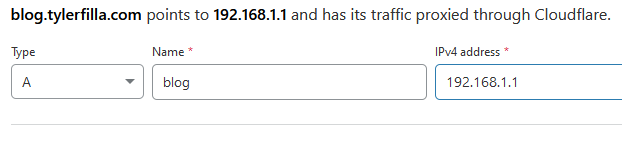
I am adding an A record that points to "192.168.1.1".
Now here is the list of records:
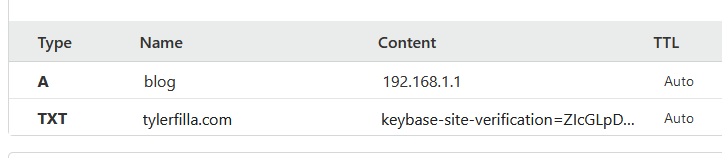
The DNS records for the site now that the blog subdomain has been added.
Aside: We can see that the Cloudflare web UI is not super concerned with consistency in the name column: blog and tylerfilla.com are hierarchical, yet they are presented flatly. In my opinion, either blog should be presented as blog.tylerfilla.com, or tylerfilla.com should be presented as the special symbol @ which is frequently used to represent the apex.
But what happens if we want to map the name tylerfilla.com.tylerfilla.com to some resource on the internet? You know, for science?
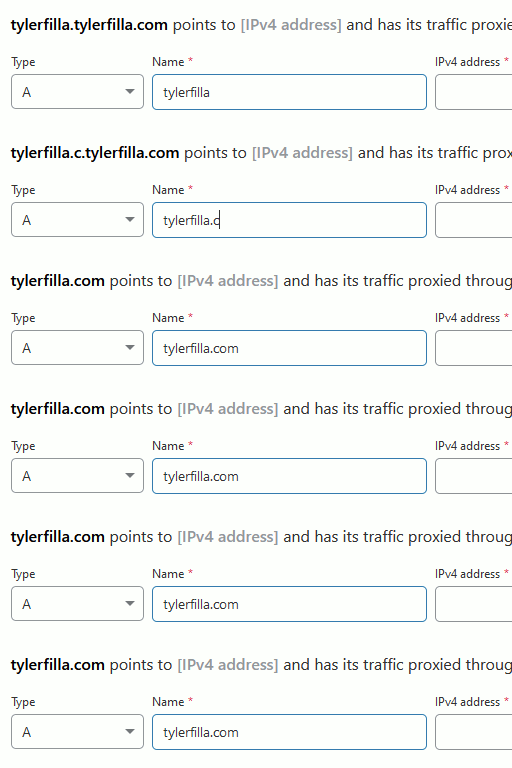
This animation shows what it's like to name a subdomain on Cloudflare.
Now that is not something I expected to happen. Cloudflare detects that the name field compares equal to the apex name, and then they assume you meant the apex. (For the record, they also accept the symbol @ for the apex, so this is not a technically necessary behavior.)
This is a contrived example, so let's un-contrive it a bit.
An Uncontrived Example
Let's say I have created a GitHub organization called tylerfilla-com that I can use to hold some repositories for my personal website.
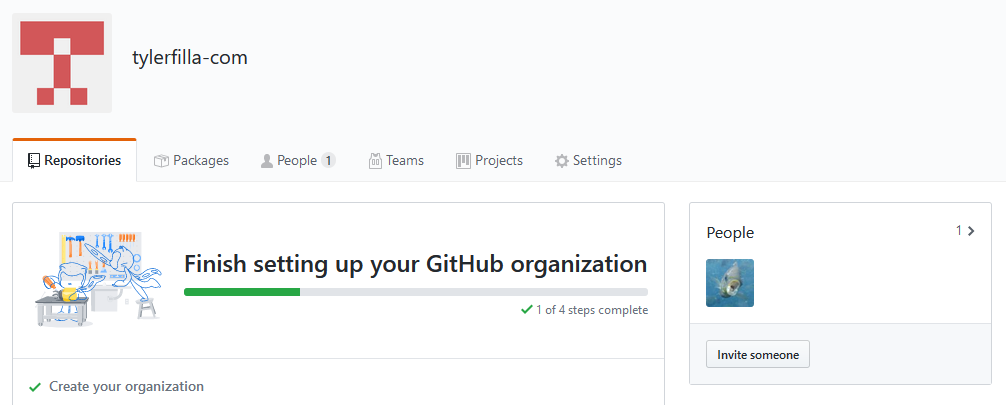
This is the home page for my new GitHub organization.
Let's add the website URL to the organization.

Now let's go get a sweet "verified" badge for it.
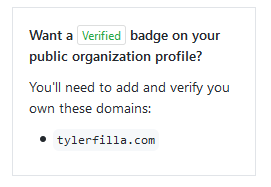
This is a little info box that GitHub shows in the organization settings about getting verified.
GitHub tells me to add a TXT record called _github-challenge-tylerfilla-com.tylerfilla.com. to the DNS with the value a9f432e7cb. (We can ignore the dot at the end of the record name, as that's just a DNS formalism.)
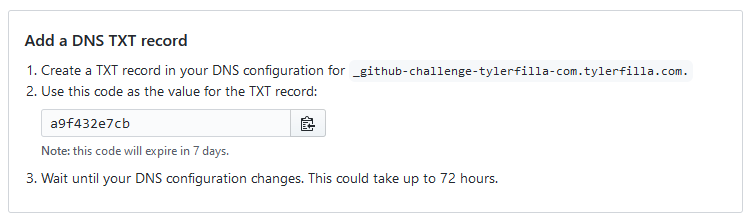
These are the instructions for completing the verification challenge.
That should be easy! What say you, Cloudflare?
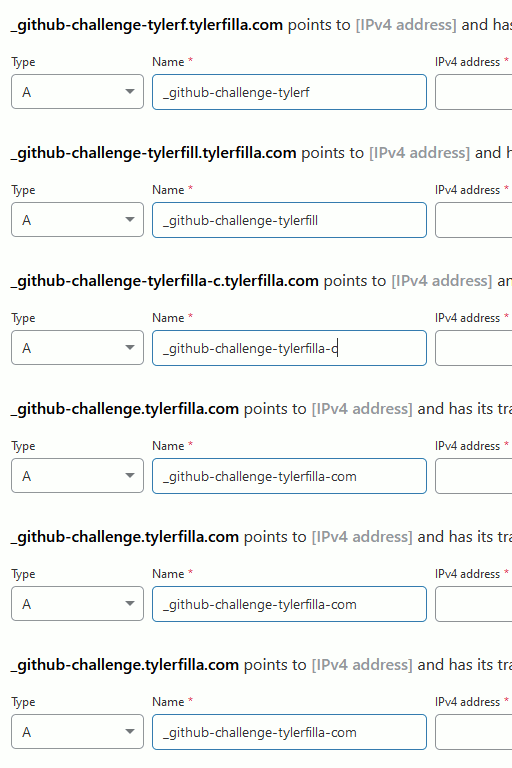
Animation of me trying to type in the challenge record name and getting Cloudflared.
😐
Cloudflare refuses to accept _github-challenge-tylerfilla-com.tylerfilla.com and autocorrects it to _github-challenge.tylerfilla.com.
The Workaround
It turns out that this is just a UI limitation on the website, and I worked around the issue using the Cloudflare API, so let's check that out. The relevant API endpoint is specified under the section called DNS Records for a Zone.
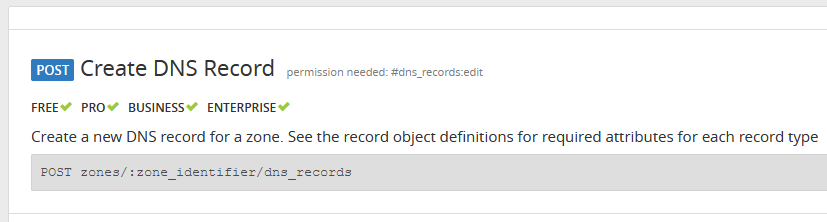
That's pretty simple. I grabbed an API token from my Cloudflare account settings and the zone identifier from the landing page for my site on the Cloudflare web app. With all of that info, I ran the following command in a Linux shell:
curl -X POST "https://api.cloudflare.com/client/v4/zones/{ZONE}/dns_records" \
    -H "Content-Type: application/json" \
    -H "Authorization: Bearer {TOKEN}" \
    --data '{"type":"TXT","name":"_github-challenge-tylerfilla-com.tylerfilla.com","content":"a9f432e7cb","ttl":1}'
(Replace {ZONE} with your zone identifier, {TOKEN} with your API token, and, of course, the record details as you need.)
And all was well 😀